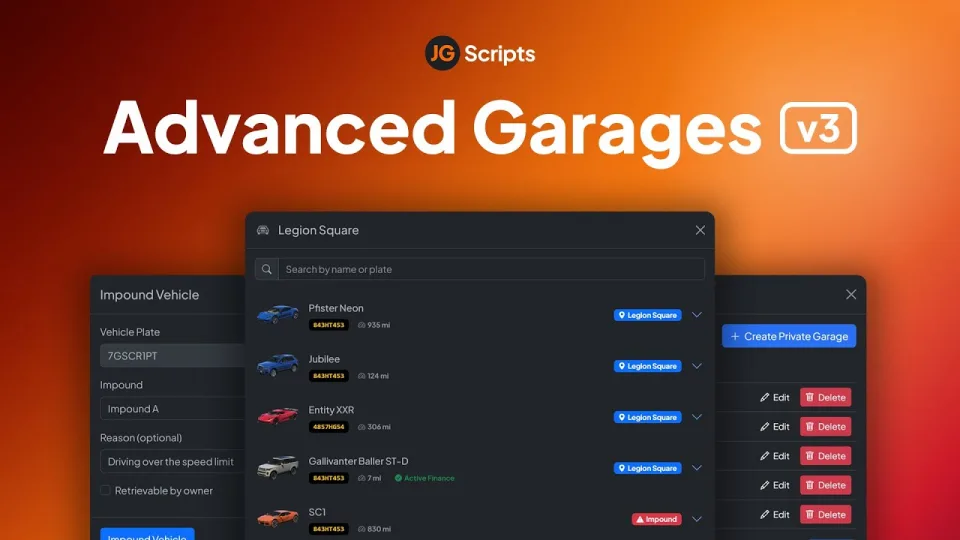
Vehicle storage, access and impound
JG Advanced Garages v3 manages public, private, house, job and gang garages, plus impounds, for FiveM servers. Use it to organise where players retrieve vehicles, who can access a shared fleet, and how an impounded vehicle is released.
The listing supports QBCore, Qbox and ESX Legacy. Gang garages are supported out of the box on QBCore and Qbox only. An ESX job garage and an ESX gang integration are separate requirements; check the latter before choosing this resource for that purpose.
Choose the garage behaviour your city needs
- Public garages: separate storage for cars, boats and aircraft, with configurable locations and access rules.
- Private and house garages: supported housing integrations and an in-game manager for individual players or groups.
- Job garages: personal vehicles, shared vehicles stored in the database, or vehicle spawners. Configure access and optional liveries, extras and performance modifications for each fleet.
- Garage interiors: optional physical interiors let players walk around their collection. A menu-based flow is also available.
- Player management: vehicle previews, searchable lists, renaming and transfers between players.
- Impounds: configurable release conditions, fees and waiting periods, with job restrictions where required.
- Administration: vehicle-management commands, logging, duplication protection and spawn-pileup protection.
Use the showcase in the preview gallery to assess the presentation. The configuration and installation checks below cover decisions a visual preview cannot settle.
Installation checklist
Work on a staging server first and back up your vehicle tables and current garage configuration before changing an existing garage system.
- Record your integrations. Note the framework and versions of your vehicle keys, fuel, housing and phone resources. Select the matching options supplied with your release.
- Keep the resource name. The creator's guide uses
jg-advancedgarages. Do not rename it. Addjg-textuiif you intend to use JG's default text UI; another supported text UI can be selected in the configuration. - Review the database changes. The installation guide identifies
install/run-qb.sqlandinstall/run-esx.sql. Use the SQL appropriate to your framework and downloaded release; check its Qbox instructions before importing into a Qbox database. Review existing columns before applying an update. - Configure locations and access. Open
jg-advancedgarages/config/config.luaand review public, private, job and gang garages, impounds and integrations. Check spawn positions against your installed maps. - Check the phone integration. QBCore servers using the default
qb-phonegarage app should follow the creator's phone-integration instructions. - Restart and verify. Start the required integrations before the garage resource. Keep a copy of your edited configuration for the next update.
The JG Advanced Garages installation guide is the reference for these steps. Documentation may describe a newer release than your download, so compare it with the installation files you receive.
Checks before opening the garages to players
- Store and retrieve: The same owner, plate and vehicle return, with the modifications, fuel and damage your integrations are configured to save.
- Relog and server restart: Stored vehicles remain accessible and an already spawned vehicle cannot be retrieved a second time unexpectedly.
- Job or gang access: An authorised character can use the intended fleet; an unrelated character cannot. Test each access mode you enable.
- Impound release: Fees, waiting periods and job permissions match your configuration.
- Housing and phone: Test the exact housing or phone resource you run, rather than assuming that all integrations behave alike.
If a vehicle disappears or loses modifications, record the plate, owner, garage and action that reproduced the problem. Check resource startup errors and the selected framework, fuel and keys integrations before changing database values. The creator documents Config.Debug = true for diagnosis; switch it off again after testing.
Connect garages to the rest of your vehicle system
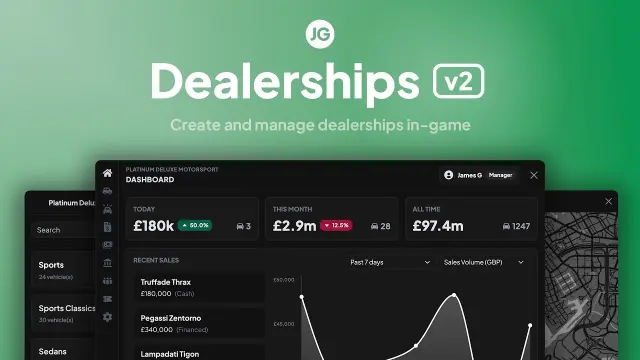
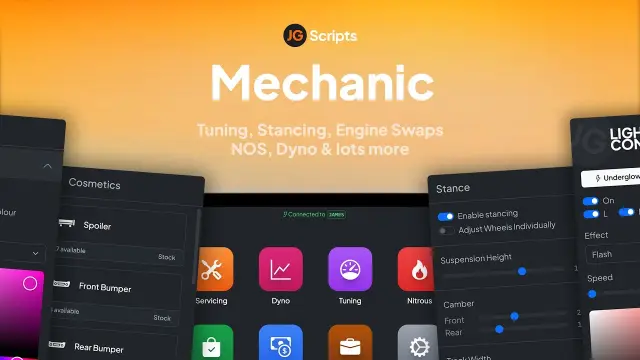
A garage controls storage and retrieval. JG Mechanic Script handles workshop work, while JG Dealerships v2 handles purchases. Test those handoffs using the same vehicle: buy it, modify it, store it, reconnect and retrieve it.
Browse the JG Scripts collection to compare those roles, or use the FiveM mechanic shop collection to plan workshop scripts and a suitable location. Buying several resources together does not replace checking their configuration against your existing server.
JG Advanced Garages v3 compatibility and purchase details
Write a review
Reviews are moderated before appearing. Purchased the product? Your review gets a VERIFIED badge automatically.